


Freeing up space in your Outlook inbox

Jun 23, 2025
 48
48
The most effective way to free up storage in your inbox is to use the online version of Outlook and free up storage from there.
Note: you will still have access to any deleted emails in the email archive.
- Go to https://outlook.office365.com/mail/
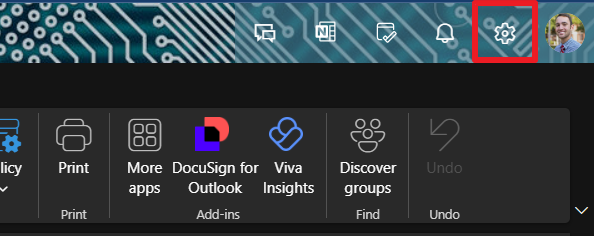
- Click on the settings menu at the top right corner
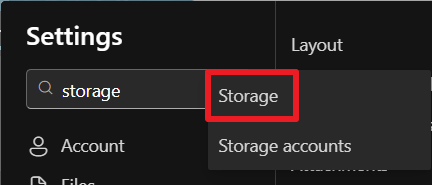
- In the settings menu type "storage" into the search and click on the storage option when it appears
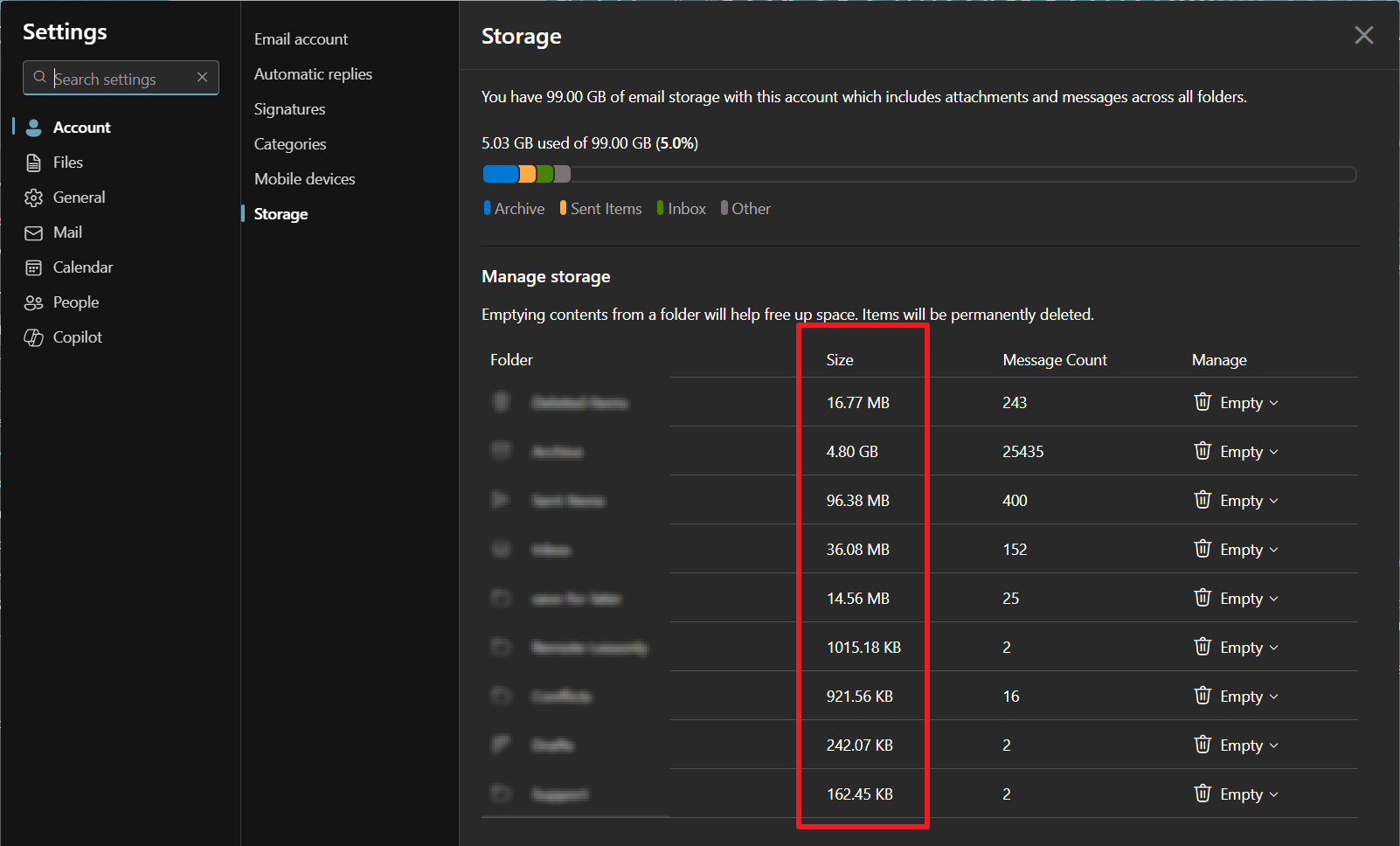
- This page should display all of your folders, their size, and how many messages are in each one
Click on the Empty drop down next to a folder you'd like to free up space in, and choose one of the options there.
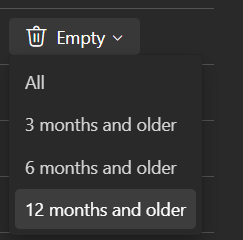
This will delete the messages from that folder, but you will still have access to all of your emails in the email archive.

